
Set Up
| Version | Min runtime version | Compatible Java versions | Description |
|---|---|---|---|
| 1.0.0 | 4.6.0 | Java 17, Java 11, Java 8 | Initial release |
| 1.0.4 | 4.6.0 | Java 17, Java 11, Java 8 | Passthrough auth, 401 auto-reconnect, MetaData Read, Http Request (renamed from Generic) |
| 1.0.5 | 4.6.0 | Java 17, Java 11, Java 8 | Async 401 re-auth: re-authentication runs asynchronously (non-blocking); HTTP requester thread no longer blocked; flow completes when async login and retry finish |
Requirements
- Mule Runtime: 4.6.0 or later
- Java: 8, 11, or 17
- Maven: 3.9.x or later
- Informatica Cloud (IICS): Active account with MDM Business 360 entitlement
Installation
Step 1: Add Maven Dependency
The MuleSoft Forge connectors are constantly updated, and the version is regularly changed. Make sure to replace {version} with the latest release from Maven Central.
Add the following dependency to your Mule application's pom.xml:
<dependency>
    <groupId>com.mulesoftforge</groupId>
    <artifactId>mule-infa-b360-connector</artifactId>
    <version>{version}</version>
    <classifier>mule-plugin</classifier>
</dependency>
Step 2: Configure the Connector
The connector supports two connection providers:
- Basic Auth — Performs login via the IICS V3 Login API with username/password. The connector manages the full session lifecycle (login, session refresh, base URL derivation). On HTTP 401 (session expired), re-authentication runs asynchronously (via refreshAsync/performLoginAsync); the HTTP requester thread is not blocked, and the flow completes once the async login and retry finish.
- Passthrough Auth — Accepts a pre-obtained session ID and B360 MDM base URL at runtime. The connector does not manage login, refresh, or logout; the caller is responsible for the token. On 401, the response is returned as-is (no re-login).
The connector authenticates via the Informatica Cloud (IICS) V3 Login API using username and password credentials for the Basic Auth provider.
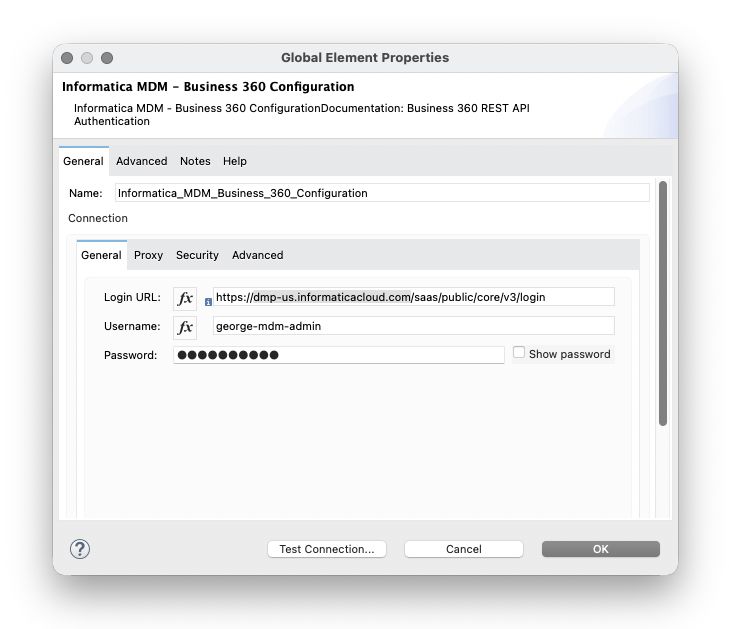
<b360:config name="Informatica_MDM_Business_360_Configuration"
        doc:name="Informatica MDM - Business 360 Configuration"
        doc:id="9cd76a86-6b67-4edb-bf97-81bcaf01fa88">
    <b360:basic-connection
        baseUrl="https://dmp-us.informaticacloud.com/saas/public/core/v3/login"
        username="${iics.username}"
        password="${iics.password}" />
</b360:config>
Connection Parameters
| Parameter | Type | Required | Default | Description |
|---|---|---|---|---|
| Login URL | String | Yes | — | The IICS V3 Login API URL — see Login URL below |
| Username | String | Yes | — | IICS username (max 255 characters) |
| Password | String | Yes | — | IICS password (max 255 characters) |
Login URL
This is the Login URL from the Informatica Authentication method — NOT the B360 API base URL. The connector calls this URL to authenticate and then automatically derives the B360 API base URL from the login response. See Base URL Transformation for details.
The default Login URL format is:
https://<Regional Hostname>/saas/public/core/v3/loginFor example: https://dmp-us.informaticacloud.com/saas/public/core/v3/login
The regional hostname depends on the POD (Point of Deployment) your organization uses. Use the following table to find your Login URL:
| POD name | Login URL |
|---|---|
| USW1 | https://dm-us.informaticacloud.com/saas/public/core/v3/login |
| USE2 | https://dm-us.informaticacloud.com/saas/public/core/v3/login |
| USW3 | https://dm-us.informaticacloud.com/saas/public/core/v3/login |
| USE4 | https://dm-us.informaticacloud.com/saas/public/core/v3/login |
| USW5 | https://dm-us.informaticacloud.com/saas/public/core/v3/login |
| USE6 | https://dm-us.informaticacloud.com/saas/public/core/v3/login |
| USW1-1 | https://dm1-us.informaticacloud.com/saas/public/core/v3/login |
| USW3-1 | https://dm1-us.informaticacloud.com/saas/public/core/v3/login |
| USW1-2 | https://dm2-us.informaticacloud.com/saas/public/core/v3/login |
| CAC1 | https://dm-na.informaticacloud.com/saas/public/core/v3/login |
| APSE1 | https://dm-ap.informaticacloud.com/saas/public/core/v3/login |
| APSE2 | https://dm1-apse.informaticacloud.com/saas/public/core/v3/login |
| APNE1 | https://dm1-ap.informaticacloud.com/saas/public/core/v3/login |
| APNE2 | https://dm-apne.informaticacloud.com/saas/public/core/v3/login |
| APAUC1 | https://dm1-apau.informaticacloud.com/saas/public/core/v3/login |
| EMW1 | https://dm-em.informaticacloud.com/saas/public/core/v3/login |
| EMC1 | https://dm1-em.informaticacloud.com/saas/public/core/v3/login |
| UK1 | https://dm-uk.informaticacloud.com/saas/public/core/v3/login |
If you don't know the name of the POD that your organization uses, contact your organization administrator or Informatica Global Customer Support. See the Product Availability Matrix (PAM) for the full list.
TLS Configuration (Optional)
| Parameter | Type | Required | Default | Description |
|---|---|---|---|---|
protocol | String | No | HTTPS | Protocol — HTTP or HTTPS |
tlsContext | TlsContextFactory | No | — | Custom TLS context for certificate management |
Advanced Settings
| Parameter | Type | Required | Default | Description |
|---|---|---|---|---|
connectionTimeout | Integer | No | 30 | Connection timeout value |
connectionTimeoutUnit | TimeUnit | No | SECONDS | Unit for connection timeout |
usePersistentConnections | boolean | No | true | Reuse HTTP connections |
maxConnections | Integer | No | -1 (unlimited) | Maximum concurrent connections |
connectionIdleTimeout | Integer | No | 30 | Idle connection timeout value |
connectionIdleTimeoutUnit | TimeUnit | No | SECONDS | Unit for idle timeout |
streamResponse | boolean | No | false | Stream HTTP responses |
responseBufferSize | Integer | No | -1 (default) | Response buffer size in bytes |
bypassMetadataCache | boolean | No | false | Skip the datamodel metadata cache |
Passthrough Auth Connection Provider (optional)
For API-led or external token management, use the Passthrough provider. The connector does not call the login API; you supply a session ID and B360 MDM base URL (e.g. from an upstream System API or vault). Session ID and base URL support DataWeave expressions. Configure an Expiration Policy (e.g. maxIdleTime="5" timeUnit="MINUTES") to avoid unbounded connection growth when tokens vary per request.
<b360:config name="B360_Passthrough">
    <b360:passthrough-connection
        sessionId="#[vars.idsSessionId]"
        baseApiUrl="#[vars.b360MdmBaseUrl]">
        <expiration-policy maxIdleTime="5" timeUnit="MINUTES" />
    </b360:passthrough-connection>
</b360:config>
To derive the B360 MDM base URL from a login response: remove /saas from baseApiUrl, then replace the first host segment with {segment}-mdm (e.g. use4 → use4-mdm). See the connector repo doc 1_Authentication for a DataWeave example.
Proxy Configuration (Optional)
| Parameter | Type | Required | Default | Description |
|---|---|---|---|---|
host | String | Yes (if proxy used) | — | Proxy hostname |
port | Integer | Yes (if proxy used) | — | Proxy port |
username | String | No | — | Proxy authentication username |
password | String | No | — | Proxy authentication password |
nonProxyHosts | String | No | — | Comma-separated list of hosts to bypass the proxy |
Step 3: Test Connection
- Open your Mule project
- Navigate to Global Elements → Create → search for
b360 - Enter your IICS credentials
- Click Test Connection
Authentication Flow
The connector handles authentication automatically:
- Login: Calls the IICS V3 Login API (
/saas/public/core/v3/login) with your username and password - Session: Extracts the session ID or JWT from the login response
- Base URL: Derives the B360 MDM API host from the
baseApiUrlin the login response (see Base URL Transformation below) - Header: Sends the session ID or JWT in the IDS-SESSION-ID header on all subsequent requests
- Refresh: Monitors JWT expiration and re-authenticates proactively (see Session ID vs JWT below)
- 401 reconnect: If any request returns HTTP 401 (session expired), the connector (Basic Auth only) re-authenticates asynchronously (refreshAsync/performLoginAsync); the HTTP requester thread is not blocked, and the flow completes once the async login and retry finish
This connector does not store the session in Object Store — the session is held in the connection instance and refreshed when the connection is re-established. The connector does not call the logout resource; sessions end when the connection is disposed or when they expire on the server.
Base URL Transformation
The login response returns a baseApiUrl (e.g. https://use4.dm-us.informaticacloud.com/saas). For Business 360 REST API calls, the connector automatically:
- Removes
/saasfrom the path - Replaces the first host segment with
{segment}-mdm
Login baseApiUrl | B360 API base URL |
|---|---|
https://use4.dm-us.informaticacloud.com/saas | https://use4-mdm.dm-us.informaticacloud.com |
https://usw1.dmp-us.informaticacloud.com/saas | https://usw1-mdm.dmp-us.informaticacloud.com |
See Authentication method — Modifying the baseApiUrl in the Informatica docs.
Session ID vs JWT
Login can return either a session ID or a JSON Web Token (JWT). Both are sent in the same IDS-SESSION-ID header.
| Mode | Expiry | Notes |
|---|---|---|
| Session ID | 30 minutes of inactivity (up to 2 min grace) | Default for most organizations |
| JWT | Configurable by admin (15, 30, 60, 120, 180, or 240 min) | Available since November 2025 |
The connector supports both modes transparently. When your organization uses JWT, the connector refreshes the token proactively: if the JWT expires within 5 minutes, validation fails so the connection is re-established and a fresh login is performed. This avoids service interruption.
Do not enable JWT if your organization uses B2B Gateway, as that service does not support JWT authentication. See JWT Support on the Informatica Knowledge Base.
Credential Management
Always use Mule property placeholders or secure configuration properties to keep credentials out of your flow XML:
<secure-properties:config
    name="Secure_Properties"
    file="secure-config.yaml"
    key="${encryption.key}" />

<b360:config name="B360_Config">
    <b360:basic-connection
        baseUrl="${iics.loginUrl}"
        username="${secure::iics.username}"
        password="${secure::iics.password}" />
</b360:config>
Troubleshooting
Test Connection Fails
Problem: Cannot connect to IICS
Solutions:
- Verify the Login URL is correct for your IICS region and includes the full path
/saas/public/core/v3/login(e.g.https://dmp-us.informaticacloud.com/saas/public/core/v3/login) - Confirm your IICS credentials are valid by logging in to the IICS web console
- Check network connectivity and proxy settings if behind a corporate firewall
DataSense Not Loading
Problem: Business Entity Internal Id or Source System drop-downs are empty
Solutions:
- Ensure the IICS user has permissions to access the MDM Business 360 datamodel
- Try setting
bypassMetadataCache="true"in the advanced settings to force a fresh fetch - Verify the B360 tenant has at least one published business entity
"Failed to retrieve Exchange asset"
Problem: Anypoint Studio shows "Failed to retrieve Exchange asset" or "no asset matching given parameters"
Cause: Studio is trying to resolve the connector from Anypoint Exchange, but this connector is not published there.
Solutions:
- In the connector project, run
mvn clean installto install to your local Maven repository - In your Mule app's
pom.xml, ensure the dependency uses the samegroupId/artifactIdand the version you built (e.g.1.0.5) - Studio will resolve it from the local repository
- If the app was created from Exchange, replace the Exchange dependency with the local artifact coordinates
Timeout Errors
Problem: Operations fail with B360:TIMEOUT
Solutions:
- Increase
connectionTimeoutin the advanced settings - Check network latency to the IICS/B360 API endpoints
- Verify the B360 service is healthy and not under maintenance
Next Steps
- Operations Reference — All available operations
- Master Read — Read master records
- Search — Search across business entities
- Source Read — Read source/cross-reference records
- Source Submit — Create or update source records
- MetaData Read — Read schema and relationship metadata
- Http Request — Call any B360 endpoint