
Set Up
| Version | Min runtime version | Compatible Java versions | Description |
|---|---|---|---|
| 1.0.6 | 4.6.X | Java 17, Java 11, Java 8 | Issue #21 |
| 1.0.5 | 4.6.X | Java 17, Java 11, Java 8 | Issue #18 |
| 1.0.4 | 4.6.X | Java 17, Java 11, Java 8 | Issue #15 |
| 1.0.3 | 4.6.X | Java 17, Java 11, Java 8 | Java 17 support |
| 1.0.2 | 4.6.X | Java 11, Java 8 | Proxy support Bug Fix - Action and Version drop-downs load all |
| 1.0.1 | 4.6.X | Java 11, Java 8 | Deprecated Utils PDFBox |
| 1.0.0 | 4.6.x | Java 11, Java 8 | Launch |

Serving Open Source Components Since 2002 The Central Repository is the largest collection of Java and other open source components. It provides the easiest way to access and distribute your software components to millions of developers.
Step1: Maven Central Repository
PREFERRED METHOD TO ADD DEPENDENCY IS TO USE Add Custom Modules to Your Project
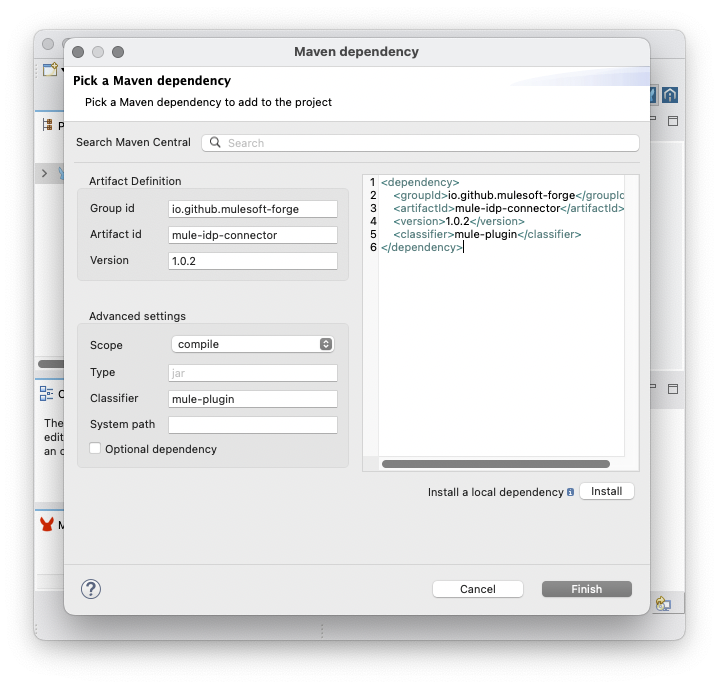
(not preferred method use ABOVE) Edit Project File pom.xml
The MuleSoft Forge connectors are constantly updated, and the version is regularly changed. Make sure to replace {version} with the latest release from Maven Central.
Copy and paste the following Maven Dependency into your Mule application pom file.
<dependency>
    <groupId>io.github.mulesoft-forge</groupId>
    <artifactId>mule-idp-connector</artifactId>
    <version>{version}</version>
    <classifier>mule-plugin</classifier>
</dependency>
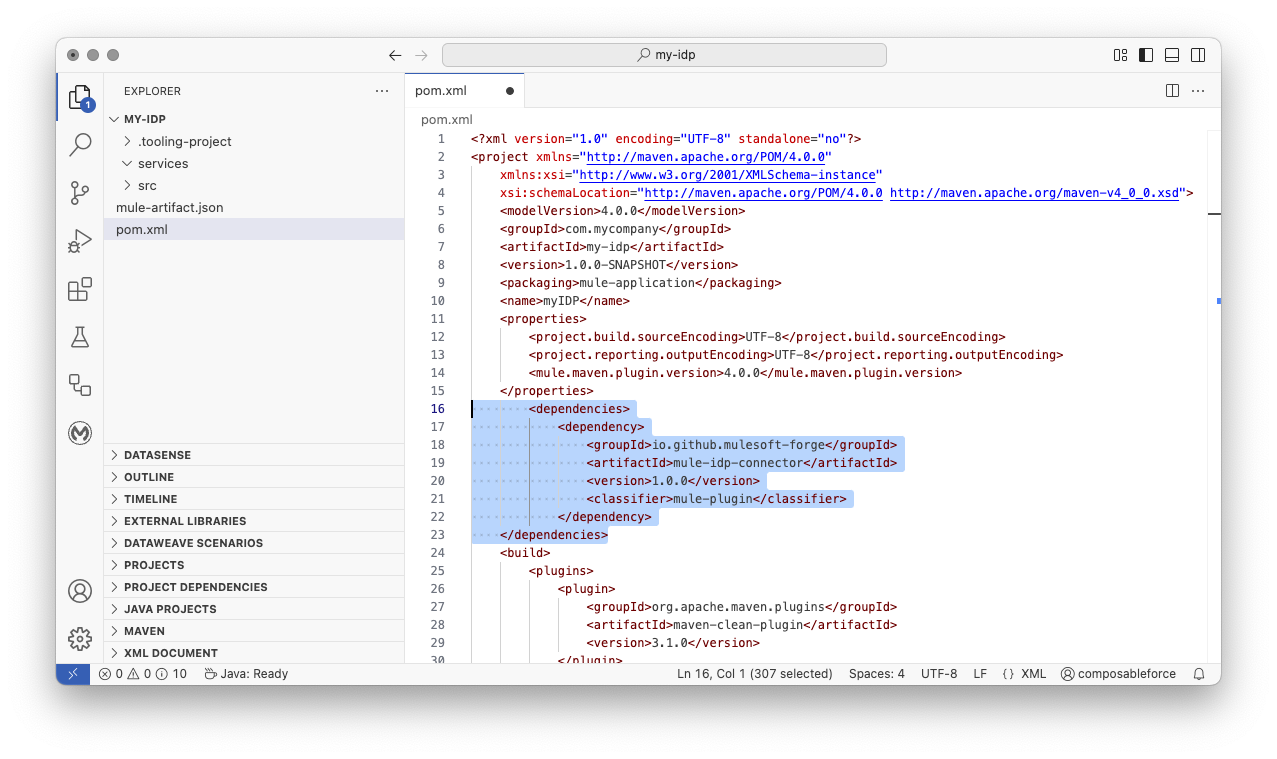
See Anypoint Code Builder Example: Note xml <dependencies> tags if not present.
Step2: Access Management
To access the following operations:
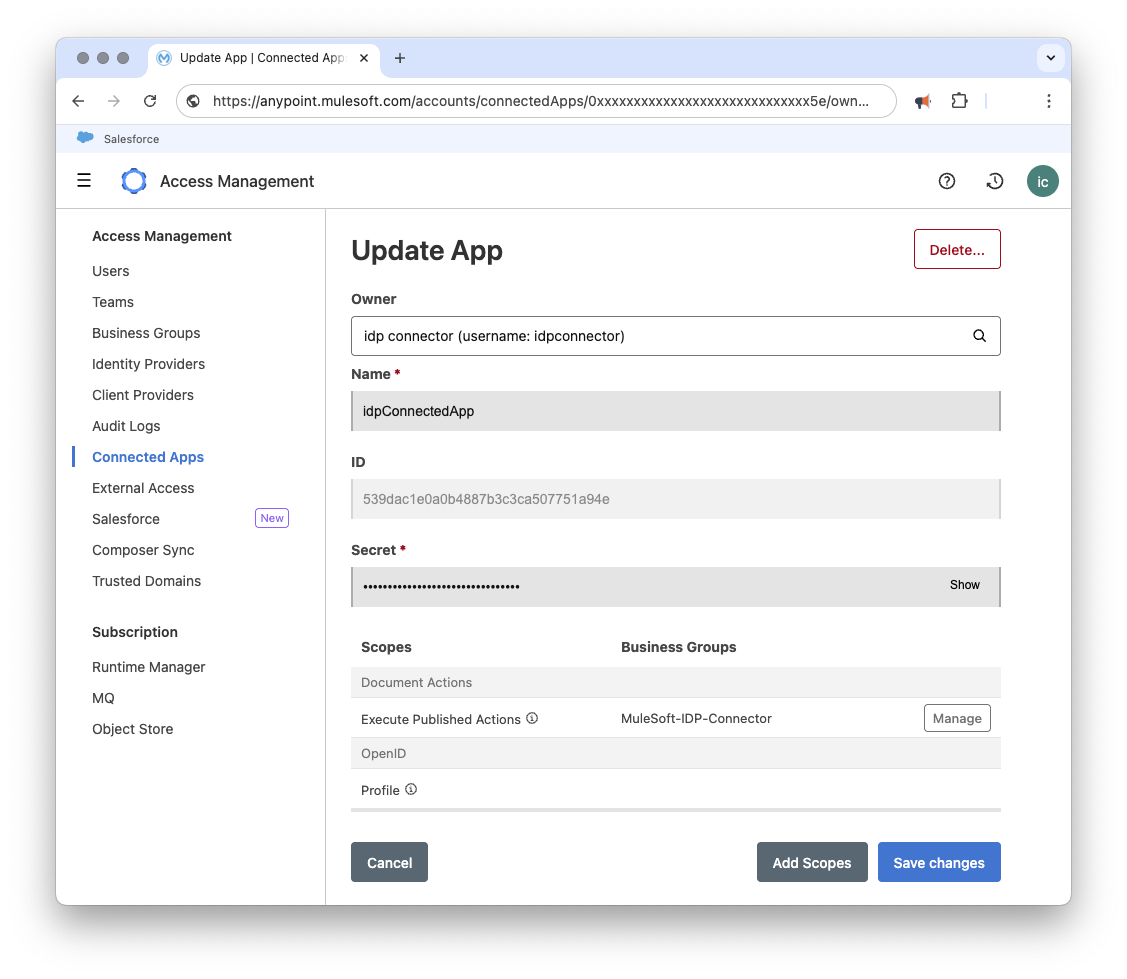
Create a Connected App with the following details:
- Type:
App acts on its own behalf (client credentials) - Scopes:
Execute Published Actions
After you create the connected app, copy its ID and Secret for Connector Configuration.
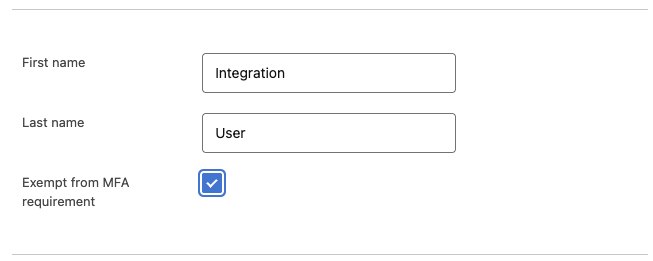
To access platform API you need to supply Anypoint User Account details with the following User details:
- Multi-factor auth:
Exempted
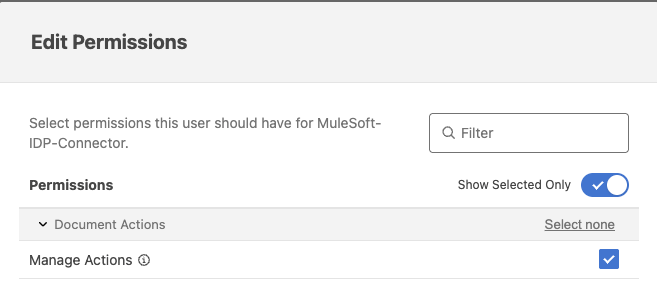
- Permissions:
Document Actions - Manage Actions
Learn API first at speed outside of MuleSoft - Postman 
If you are unfamiliar with the underlying API to a connector and not sure you have permissions right please fight those issues in Postman/SoapUI first.
Here is a complete Postman Collection:
Step4: Connector Configuration
Create Global Element Connector Configuration
Choose Global Type, restricting on "idp"
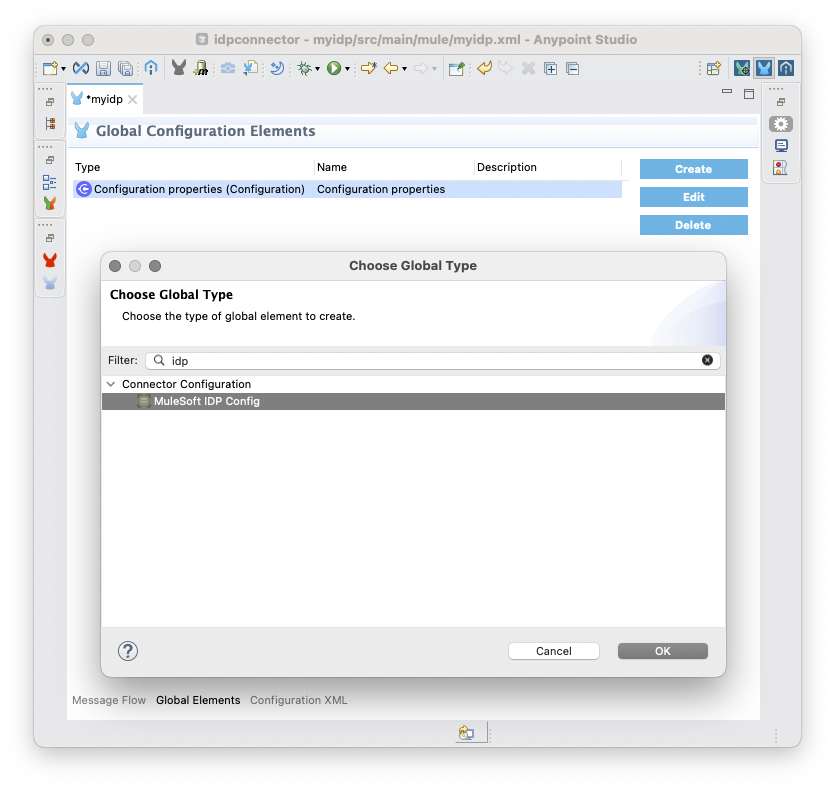
Default Config Settings
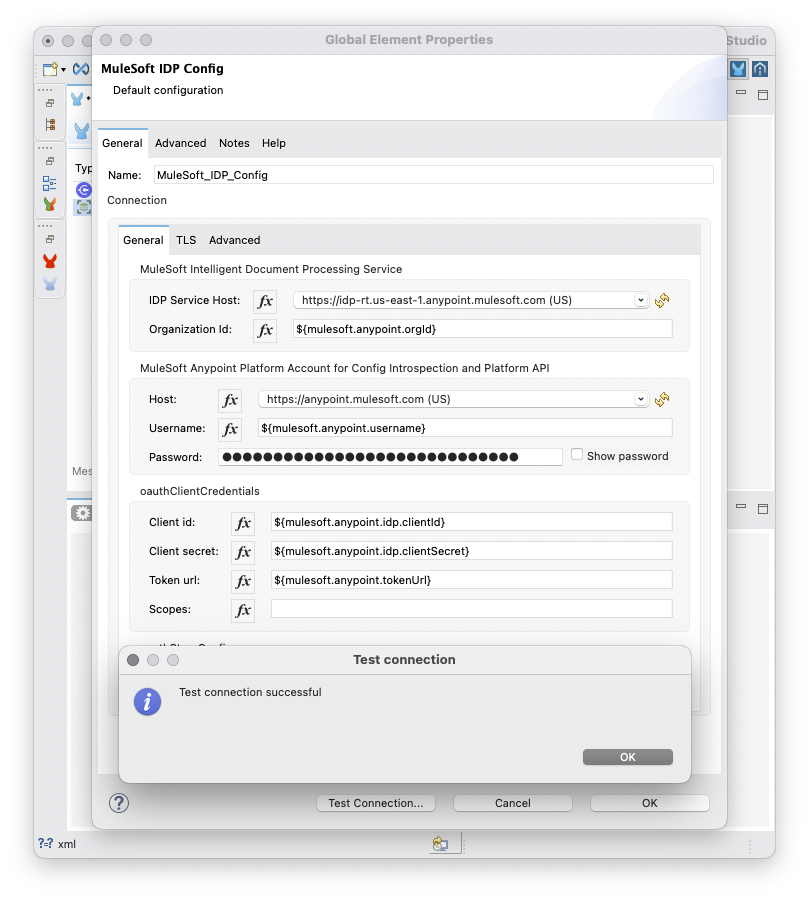
MuleSoft IDP Config default settings are as follows:
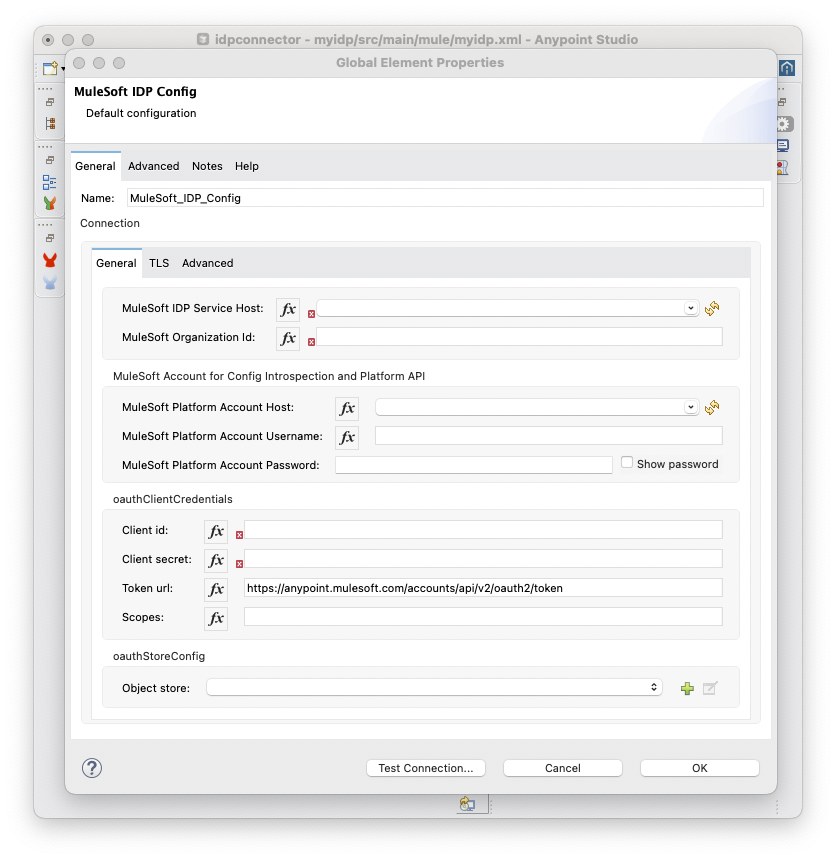
Enter your Settings
Tip - Enter OAuth first as the configuration UI validates that first! 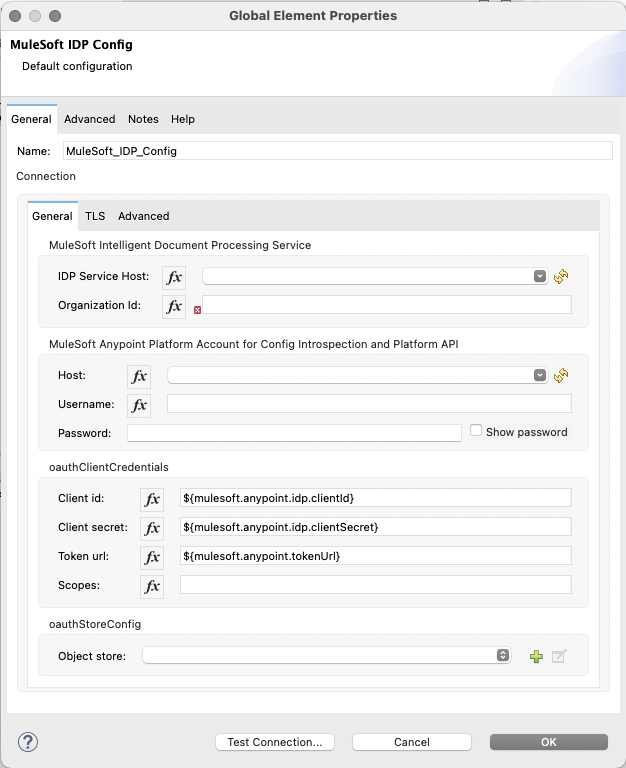
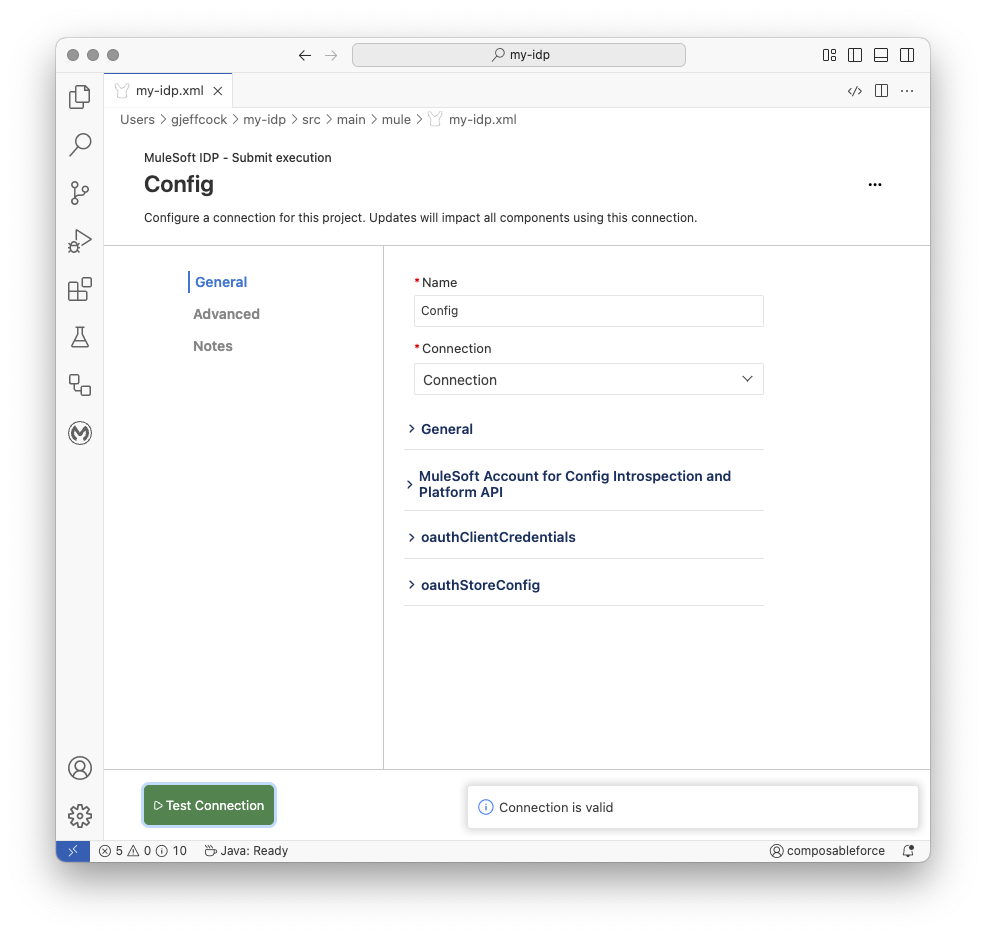
Test Connection
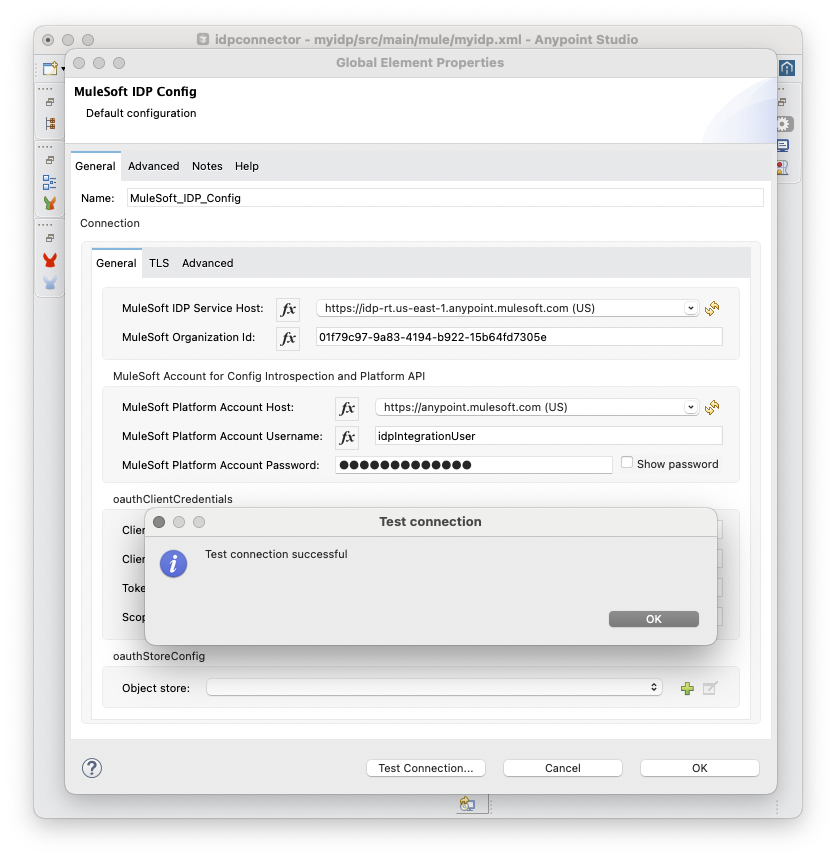
== Anypoint Code Builder
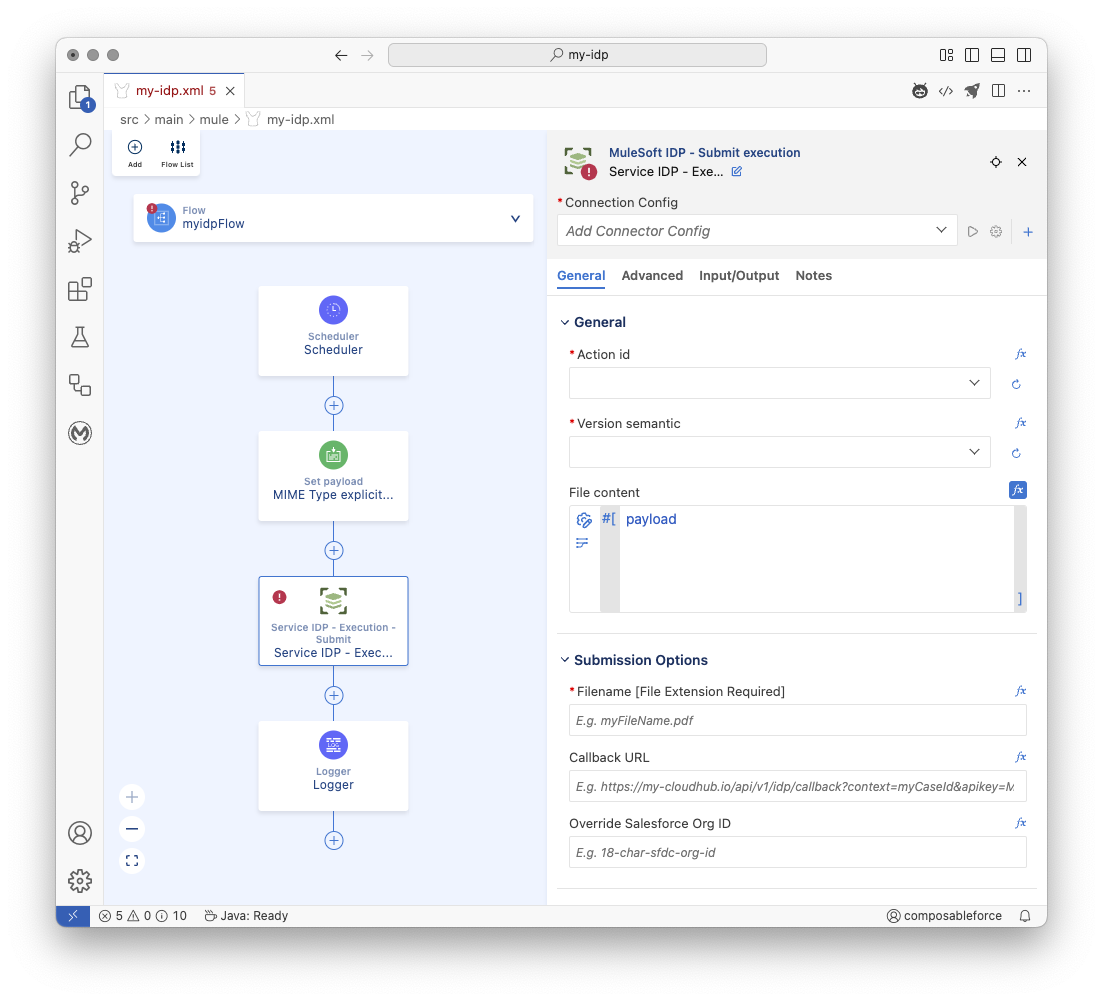
Create Global Element Connector Configuration
Currently ACB does not have a dedicated Global Configuration Elements UI, so create the configuration as part of the configuration of the first IDP Operation configuration of the project
Enter your Settings
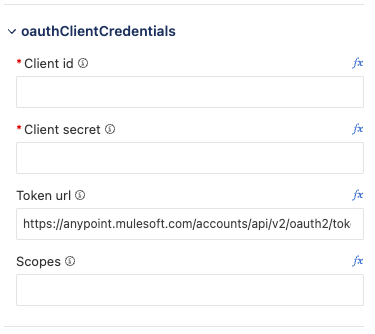
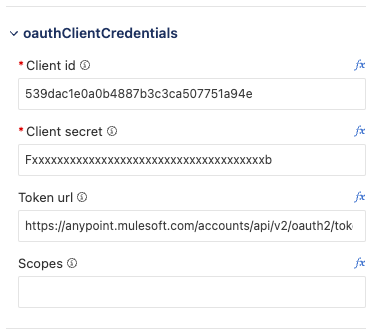
Client id: ID of the connected app to call IDP
Client secret: Secret of the connected app to call IDP
Token url: URL to obtain the access token for your connected app
Default:
https://anypoint.mulesoft.com/accounts/api/v2/oauth2/tokenScopes: Leave Empty
Example Completed Region:
Test Connection
:::